
This post covers current iOS 26 Screen Time steps (verified against Apple's published settings paths as of August 2026). Apple has previewed additional Screen Time features arriving with iOS 27 this fall; once that update is live, this guide should be revisited.
Proverbs 4:23
Keep thy heart with all diligence; for out of it are the issues of life.
Psalm 101:3
I will set no wicked thing before mine eyes.
Why These Safeguards Matter
The teenage years are some of the most important years of spiritual and emotional formation in a young person's life. A teenager's convictions are being tested, their identity is being shaped, and their sense of right and wrong is being formed by everything that has access to their eyes, ears, and mind. During these years, the mind is still developing the capacity for self-control and long-term judgment, even while the desire for independence is growing quickly. That gap between growing freedom and growing wisdom is exactly where a smartphone becomes either a tremendous help or a serious danger.
An iPhone in a teenager's pocket is not a neutral object. It is a door. Through that door can come sound Bible teaching, encouraging communication with godly friends, and useful tools for school and ministry. But through that same door can also come pornography, predatory strangers, cruel words from peers, hours of wasted time, and a steady stream of worldly messages about identity, beauty, and worth that contradict the truth of God's Word.
Scripture places the primary responsibility for this kind of guarding on parents.
Ephesians 6:4
And, ye fathers, provoke not your children to wrath: but bring them up in the nurture and admonition of the Lord.
Proverbs 22:6
Train up a child in the way he should go: and when he is old, he will not depart from it.
Parental controls are not a lack of trust in your teenager. They are one practical way of fulfilling the charge God has given parents to nurture, protect, and train. A wise farmer builds a fence before he needs one. A wise parent sets a boundary before it is tested. Setting up these tools now, and explaining calmly why they are in place, is an act of love and shepherding, not suspicion.
The instructions below will walk you through every major parental control currently available on iOS, step by step.
Setting Up Parental Controls on iOS (Step-by-Step)
These steps use Apple's built-in Screen Time and Family Sharing tools, which are free and do not require any third-party app. Plan on fifteen to twenty minutes to complete the full setup. You will need your own iPhone and access to your teenager's Apple ID.
Suggested Starting Settings At a Glance
The starting points below reflect a standard consistent with our church's convictions on media and worldliness. Every family may adjust from here, but this is a sound place to begin.
Suggested Starting Point
- Movies, TV Shows, Apps - G or PG only
- Music, Podcasts & News - Block explicit content
- Web Content - Limit Adult Websites (or Allowed Websites Only for stronger filtering)
- Downtime - 10:00 PM – 7:00 AM
- App Limits - Set limits on Social Networking, Games, and Entertainment/Streaming Video
The detailed steps below show exactly where to enter each of these.
Step 1: Set Up Family Sharing
Family Sharing links your teenager's Apple Account to yours so that every setting below can be managed from your own phone, not theirs.
- On your iPhone, open Settings.
- Tap your name at the top, then tap Family (on some devices this appears as Family Sharing).
- Tap Add Member, then follow the prompts to add your teenager, either by inviting their existing Apple ID or creating a new one for them.
- Confirm your teenager now appears listed under your Family group.
[Screenshot: Settings > Family screen]
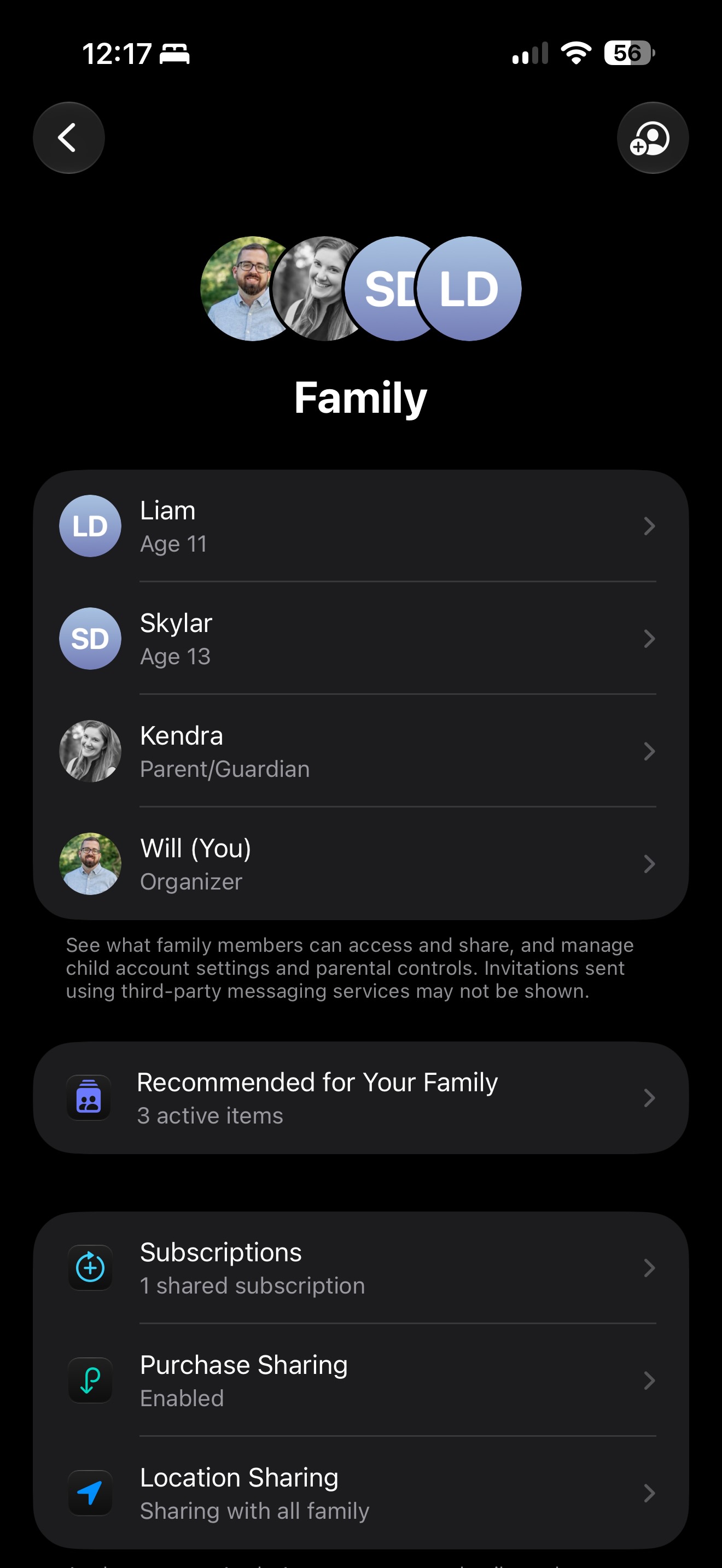
This step matters more than any other. Every control below depends on your teenager's account being part of your Family group. Without it, restrictions can be changed or removed from their own device.
Step 2: Turn On Screen Time and Set a Screen Time Passcode
- On your iPhone, go to Settings > Screen Time.
- Under the "Family" section, tap your teenager's name.
- If Screen Time is not already on, tap Turn On Screen Time, and follow the prompts, making sure you are setting it up as the parent.
- When prompted, create a four-digit Screen Time Passcode. This is separate from your teenager's device passcode.
[Screenshot: Screen Time passcode setup]

Do not use a birthday, "1234," or any code your teenager could guess. This passcode is what keeps them from changing or removing any setting you put in place.
Step 3: Enable Content and Privacy Restrictions
This is where you control what content is allowed on the device.
- Go to Settings > Screen Time, tap your teenager's name, then tap Content & Privacy Restrictions.
- Turn on Content & Privacy Restrictions.
- Tap iTunes & App Store Purchases to control installing, deleting, and in-app purchases.
- Tap Content Restrictions to set age-appropriate limits for:
- Movies, TV Shows, Apps, and Books (choose the appropriate rating for your teenager's age)
- Web Content — select Limit Adult Websites at minimum, or Allowed Websites Only for stronger filtering
- Music, Podcasts & News and explicit content filtering
- Siri — restrict explicit language and web search results
- Passcode Changes — set this to require your Screen Time passcode
[Screenshot: Content & Privacy Restrictions menu]
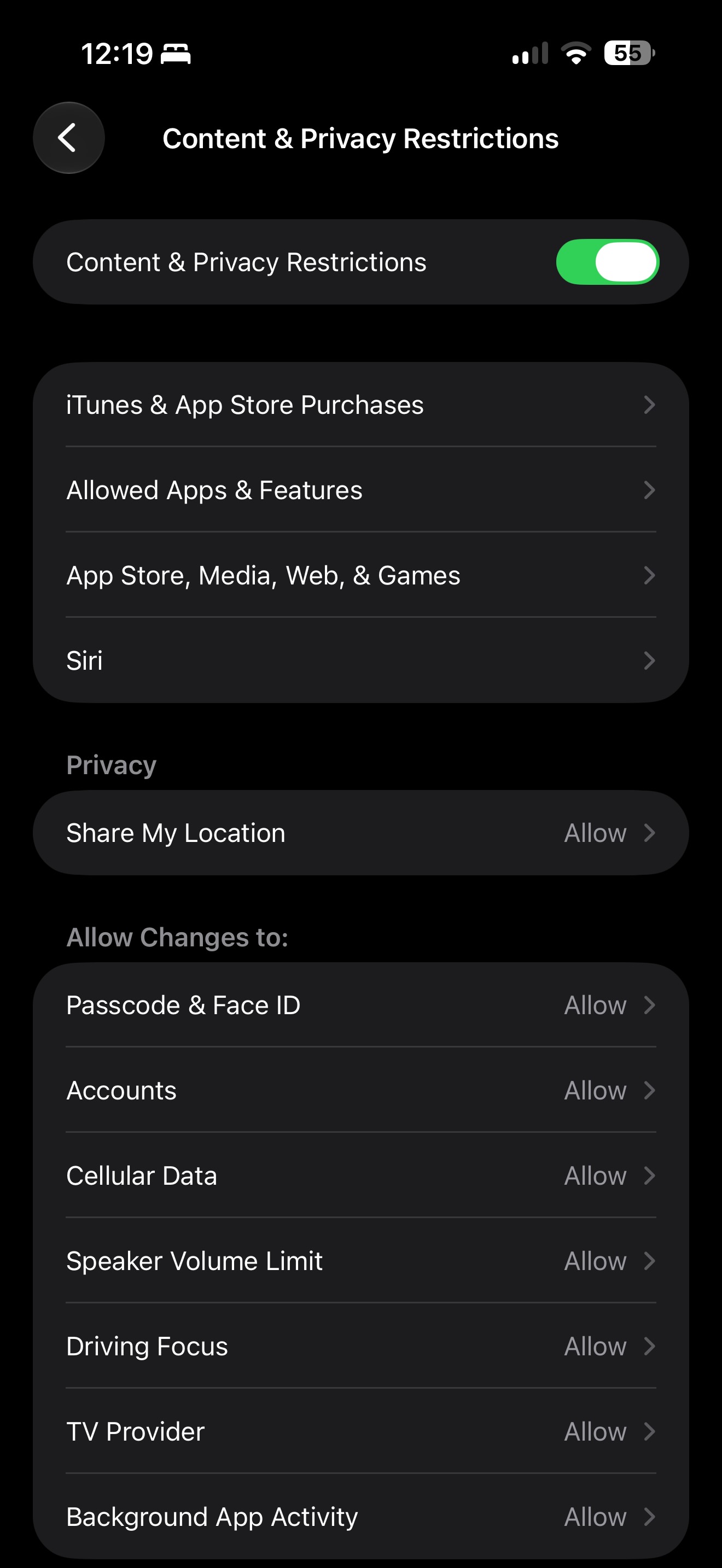
Suggested starting point: Set Movies, TV Shows, and Apps to G or PG, block explicit content under Music, Podcasts & News, set Web Content to at least Limit Adult Websites, and turn off explicit language and search results under Siri. This is a stricter baseline than Apple's own defaults, chosen to reflect the standard of purity Scripture calls us to guard our minds with:
Philippians 4:8
Finally, brethren, whatsoever things are true, whatsoever things are honest, whatsoever things are just, whatsoever things are pure, whatsoever things are lovely, whatsoever things are of good report; if there be any virtue, and if there be any praise, think on these things.
Families are free to adjust from here as they know their own household, but this is a sound and biblically consistent place to begin.
Step 4: Configure Communication Limits and Communication Safety
- From the same Screen Time menu for your teenager, tap Communication Limits.
- Choose who your teenager can call, message, or FaceTime with, and set separate rules for during Downtimehours.
- Return to Screen Time and look for Communication Safety (under Content & Privacy Restrictions or as its own menu depending on iOS version). Turn this on. It warns and blurs sensitive images sent or received in Messages and other supported apps, without alerting anyone outside the family.
[Screenshot: Communication Limits screen]
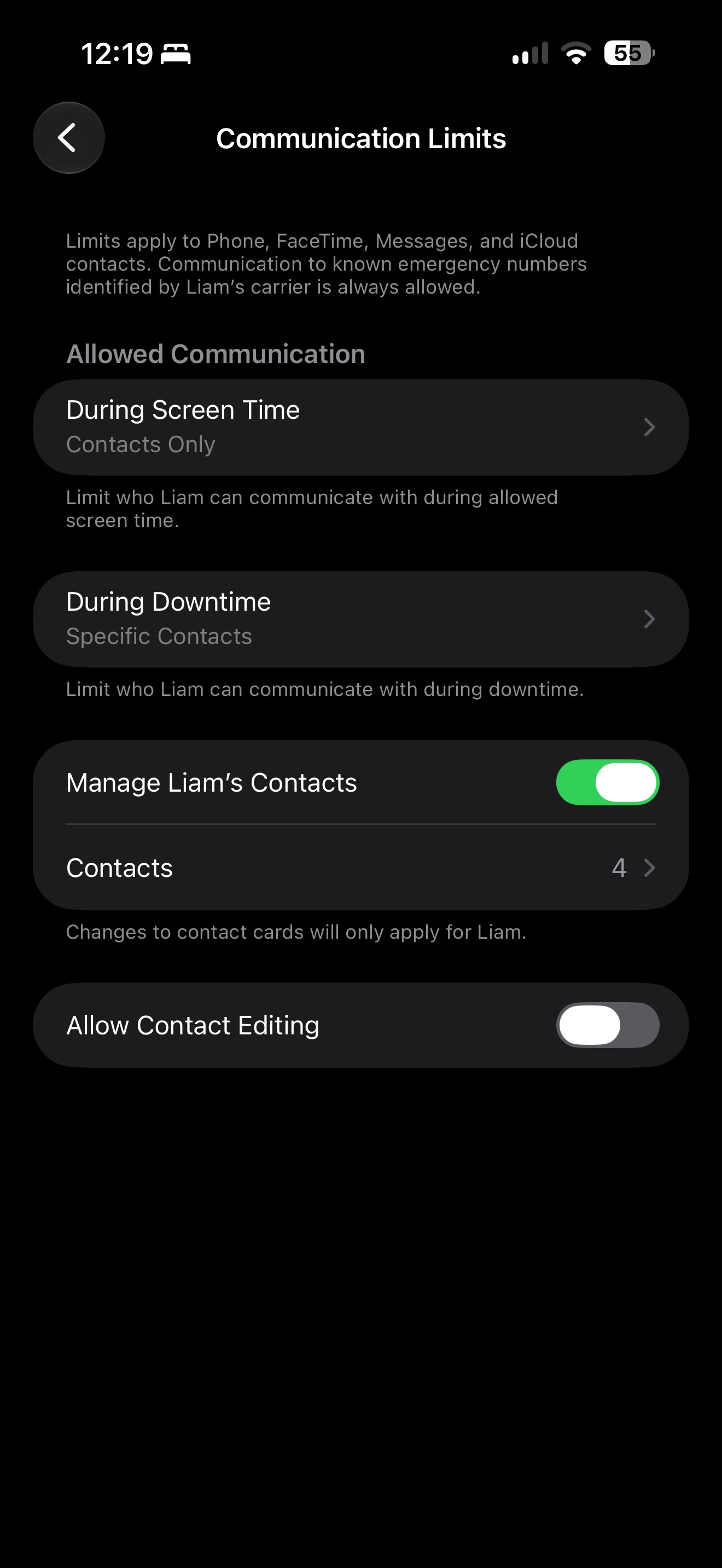
Step 5: Set Downtime and App Limits
- In Screen Time, tap Downtime and schedule hours when only phone calls and apps you allow will be available — a strong recommendation is overnight hours and during family or church time.
- Tap App Limits, then Add Limit, and choose categories such as Social Networking, Games, or Entertainment to set daily time budgets.
- Under Always Allowed, choose which apps (such as Phone, Messages, or a Bible app) remain available even during Downtime.
[Screenshot: Downtime and App Limits screens]
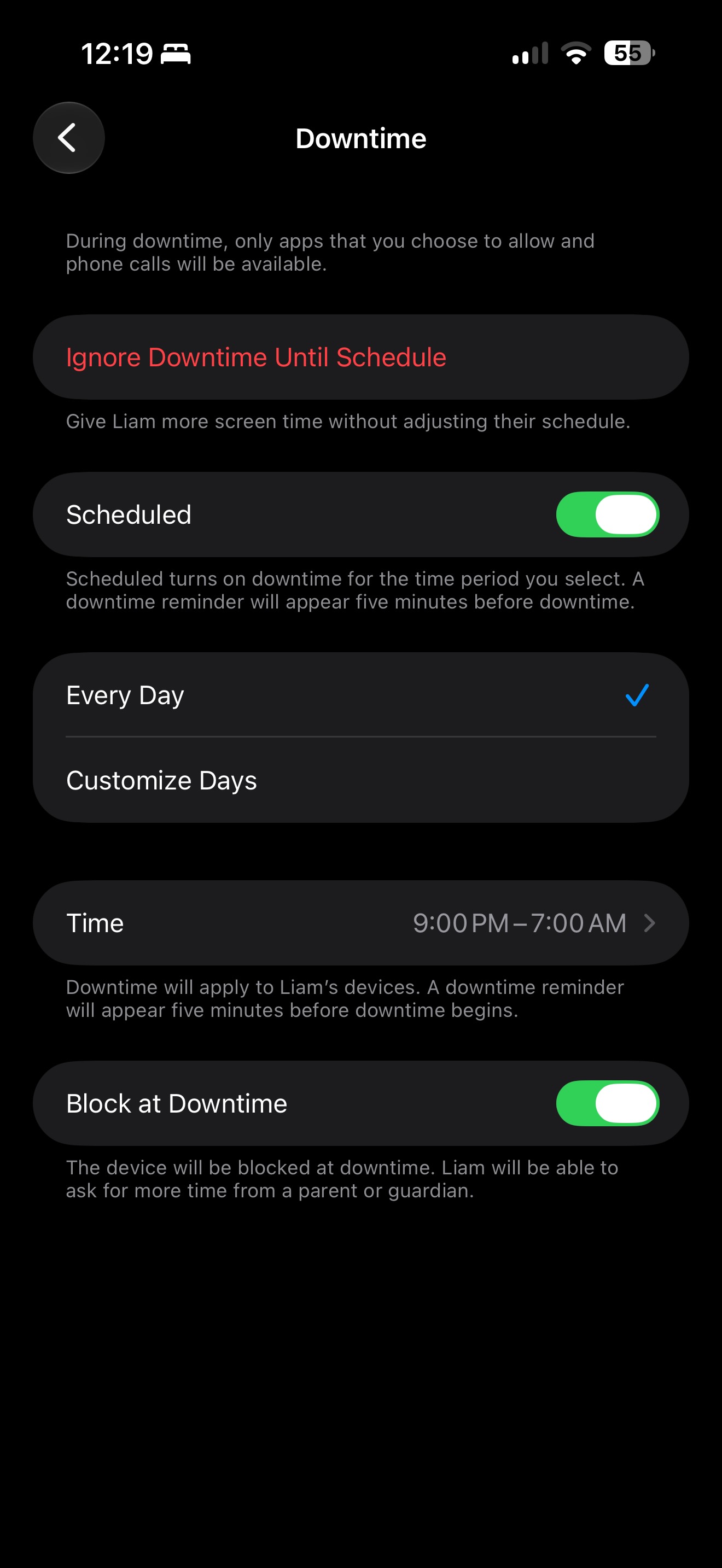
Suggested starting point: Set Downtime for 9:00 PM to 7:00 AM as a general common-sense window, adjusting for your family's own schedule, church commitments, and school demands. For App Limits, the categories most worth restricting are Social Networking, Games, and Entertainment/Streaming Video. The exact number of minutes is best left to each family, but limiting these three categories in particular will address where most unsupervised time tends to go.
Step 6: Turn On Ask to Buy
- Go to Settings > [your name] > Family.
- Tap your teenager's name, then turn on Ask to Buy.
This sends you a notification any time your teenager attempts to download an app or make a purchase, giving you the chance to approve or decline it.
Step 7: Turn On Location Sharing
- Go to Settings > [your name] > Family, tap your teenager's name, and enable Share My Location, or open the Find My app directly.
This is a safety measure, not a means of constant surveillance. It exists so that in an emergency, or simply out of ordinary parental care, you know where your child is.
Step 8: Lock the Settings Down
Return one more time to Screen Time > Content & Privacy Restrictions and confirm that Passcode Changesrequires your Screen Time passcode. This prevents your teenager from disabling anything you have just set up. Keep this passcode private, and do not store it in a note on a shared device.
A Word to Our Teenagers
If you are a teenager reading this, some of what your parents are setting up on your phone may feel restrictive, or even like they do not trust you. Please listen and understand: these limits are not a punishment, and they are not evidence that your parents think poorly of you. They are evidence that your parents love you and take seriously the responsibility God has given them to watch over you.
Proverbs 1:8-9
My son, hear the instruction of thy father, and forsake not the law of thy mother: for they shall be an ornament of grace unto thy head, and chains about thy neck.
Ephesians 6:1
Children, obey your parents in the Lord: for this is right.
Scripture is honest about the fact that there is real danger in this world, and much of it now arrives through a screen. The Bible describes an adversary who is active and watching for an opportunity:
1 Peter 5:8
Be sober, be vigilant; because your adversary the devil, as a roaring lion, walketh about, seeking whom he may devour.
That danger is not hypothetical.
- Strangers online do not always present themselves honestly, and some intend real harm.
- Pornography does lasting damage to the mind and to the conscience, and it is designed to be addictive.
- Endless scrolling and comparison on social media are tied to real struggles with anxiety and discouragement among people your age.
None of these dangers announce themselves clearly before they do harm. That is exactly why a boundary set in advance, by someone who loves you, is worth more than a warning that comes too late.
When you are tempted to see a parental control as an obstacle, try to see it instead as a guardrail on a mountain road. It is not there because the road's engineers think you are a bad driver. It is there because the drop is real, and someone who cares about you decided you deserved protection before you needed it.
Trust your parents in this. Talk with them if a rule feels unclear or if you disagree, honestly and respectfully, rather than looking for ways around it. And above all, remember that ultimate safety and ultimate satisfaction were never found in unlimited access to anything a screen can offer. They are found in Christ.
Proverbs 3:5
Trust in the LORD with all thine heart; and lean not unto thine own understanding.
Questions about any of these settings can be directed to Bro. Nick Brunoni. Parents are also encouraged to review these settings together with their teenager rather than simply installing them without conversation, a boundary explained is far more likely to be respected than a boundary imposed in silence.